


You just had your best farmers market weekend yet. Customers are asking if they can order ahead for next Saturday. Someone wants a dozen cinnamon rolls every week. Another wants to know if you deliver.
Right now you are juggling text messages, Instagram DMs, and a notebook that is getting harder to read. You need a system, but you are not ready to pay for software you might not use long enough to justify.
Google Forms is the answer most small food vendors land on first, and for good reason. It is free, takes about 15 minutes to set up, and works on any phone or computer. It is not perfect, but it gets you from chaos to organized fast enough to test whether online ordering is worth building into your business.
The short version: Google Forms gives cottage food vendors a free, no-code way to take online orders. You create a form with your products, quantities, pickup details, and customer contact info, then share the link on social media or at your booth. It will not process payments or manage inventory, but it works well enough to validate demand and stay organized while you are doing fewer than 15 orders per week. Once you outgrow it, you can transition to a dedicated storefront like Homegrown without losing customers.
Google Forms is the most popular free ordering tool among cottage food vendors because it removes every barrier to getting started. You do not need a website, a developer, or a credit card. You need a Google account and about 15 minutes.
Here is why it works for vendors just getting going:
> Most cottage food vendors who eventually move to paid ordering software started with Google Forms first. It is the lowest-risk way to test whether your customers want to order online.
For vendors who are still deciding whether online ordering makes sense, starting with a free tool is smarter than committing to paid software right away. You can always upgrade from free to paid tools once you have the volume to justify it.
Start by going to Google Forms and creating a new blank form. The setup takes about 15 minutes.
Setting up a Google Form as your order system takes six steps. You can complete the whole process in under 20 minutes.
Bonus step: Click the three dots and select "Get email notifications for new responses" so you get an alert every time someone orders.
All responses flow into a Google Sheet automatically. Click the "Responses" tab, then the green Sheets icon to create your spreadsheet. This becomes your order dashboard.
The right fields make the difference between a form that works and one that creates more confusion than it solves. Include too few fields and you will be texting customers for missing information. Include too many and they will abandon the form halfway through.
Here is what to include:
| Field Name | Question Type | Required? | Why It Matters |
|---|---|---|---|
| Customer name | Short answer | Yes | You need to know who is picking up |
| Phone number | Short answer | Yes | Your primary way to confirm or update orders |
| Email address | Short answer | No | Useful for sending receipts or updates |
| Products | Checkboxes | Yes | What they are ordering |
| Quantity per product | Dropdown (1-5) | Yes | Prevents vague quantity requests |
| Pickup date | Multiple choice | Yes | Keeps orders organized by day |
| Pickup time slot | Multiple choice | Yes | Prevents 20 people showing up at once |
| Delivery or pickup | Multiple choice | Yes (if you offer both) | Determines your logistics |
| Delivery address | Short answer | Conditional | Only needed if they select delivery |
| Allergies or dietary needs | Paragraph | No | Protects you and your customer |
| Special requests | Paragraph | No | Catches custom cake messages, flavor swaps, etc. |
| Payment method | Multiple choice | No | Lets you list Venmo, Zelle, cash at pickup, etc. |
> A solid order form captures everything you need to fulfill the order without a single follow-up text. If you find yourself texting customers after they submit, your form is missing a field.
A few tips that save headaches:
If you want to go further and create a pre-order system for your food business, Google Forms can serve as the first version of that workflow.
Google Forms is a great starting point, but it was designed for surveys, not for running an ordering system. The gaps show up fast once you start getting consistent orders.
Here are the biggest limitations:
| Limitation | What It Means for You |
|---|---|
| No payment processing | You cannot collect payment through the form. You have to chase Venmo/Zelle payments separately or collect cash at pickup. |
| No inventory tracking | If you only have 10 loaves and 15 people order, you will not know until you check the spreadsheet manually. The form never stops accepting orders. |
| No automatic order cutoffs | You cannot set a deadline that automatically closes the form. You have to remember to turn it off manually every week. |
| No order confirmations | Customers do not get a confirmation email with their order details unless you set up a separate automation. |
| No order totals | The form does not calculate prices. Customers cannot see their total before submitting, and you have to add it up yourself. |
| No storefront or product photos | There is no way to display your products visually. Customers are ordering from a text list. |
| Manual follow-up required | Every order requires you to manually confirm, calculate the total, request payment, and track fulfillment. |
| No recurring order support | Regular customers have to fill out the same form every single week. There is no way to save preferences or automate repeat orders. |
> The average cottage food vendor spends 30 to 45 minutes per day on manual order management when using Google Forms at 10 or more orders per week. That time adds up to 3 to 5 hours weekly that could be spent making products.
The biggest pain point most vendors hit is chasing payments. You get an order through the form, but the customer has not paid yet. Now you are sending a Venmo request, waiting for them to accept, and wondering whether to start making their order before the payment clears. Multiply that by 15 customers and your evenings disappear into payment follow-ups.
If you want a slightly more polished form experience, Jotform offers free bakery order form templates that look more professional than a plain Google Form, though they still lack payment integration. The other frustration is the lack of order limits. If you make 20 jars of salsa per week and 25 people order through the form, you have to manually tell five people you are sold out. A dedicated ordering system closes orders when inventory runs out.
For vendors who want to set order cutoff times for their food business, Google Forms requires you to remember to toggle the form off at your deadline. Miss it once and you will be scrambling to fulfill orders you cannot fill.
You should upgrade from Google Forms when the time you spend managing orders manually costs more than a paid tool would. For most vendors, that tipping point hits around 15 orders per week.
Here are the signs it is time to move on:
> The upgrade from Google Forms to a paid storefront typically pays for itself within two weeks. A $10/month tool that saves you 5 hours of admin time per week is worth it even if your hourly rate is only $2.
The decision is not about whether Google Forms is bad. It is about whether your time is worth more than the cost of a better tool. When the answer is yes, it is time to switch.
When you outgrow Google Forms, you have several options — and they are not equal for a cottage food vendor selling locally.
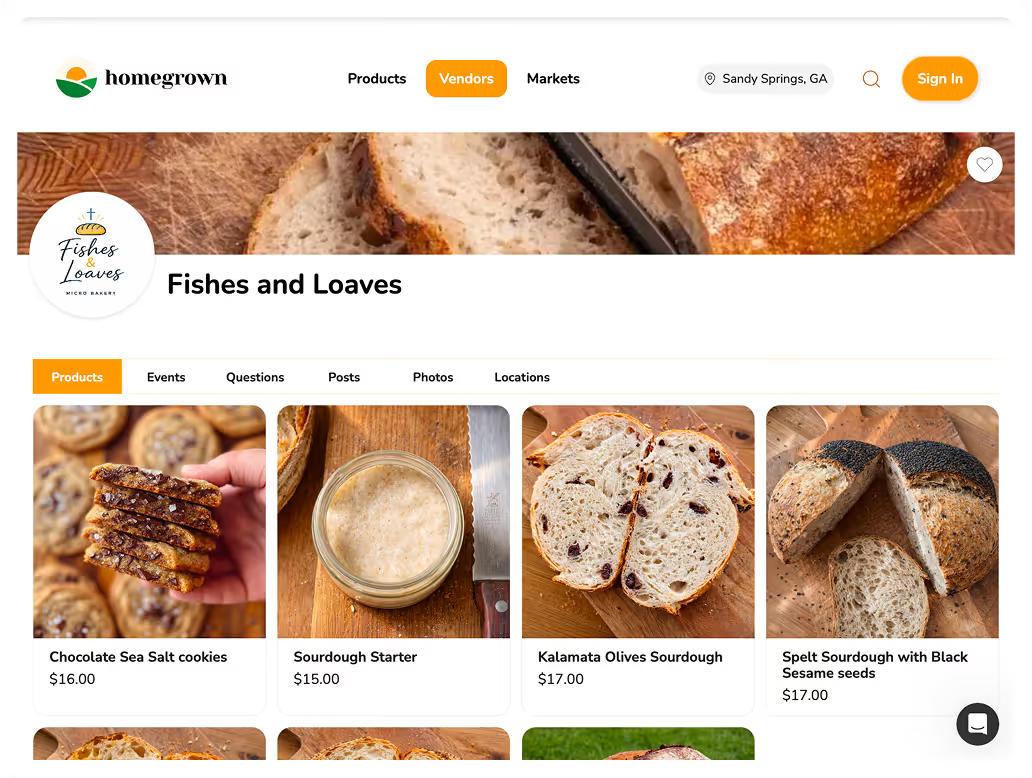
Homegrown is $10/month with no percentage fees. It was built for exactly this transition: you add your products, set pickup windows, and customers order and pay in one step. Order cutoffs close automatically. Inventory limits prevent overselling. You get the confirmation emails and payment tracking that Google Forms could not provide, without the complexity of building a full e-commerce site.
Square Online charges 2.9% plus 30 cents per transaction — on $1,000 monthly, that is over $35 in fees, and the platform is built for restaurants, not cottage food vendors scheduling Saturday pickups. Etsy charges 6.5% of every sale and puts you in a marketplace competing with thousands of sellers, which makes no sense when your customers are local. Shopify starts at $39 per month — overkill for a vendor handing cookies to someone in a parking lot.
Homegrown does not build your transition emails or design your product photos — that is your announcement and your phone camera. But it gives you everything Google Forms was missing at a price that costs less than one hour of your admin time.
Moving customers from a Google Form to a real storefront does not have to be dramatic. Most customers prefer the upgrade because it makes their experience easier.
Here is how to switch smoothly:
> The vendors who transition most smoothly are the ones who frame the upgrade as a benefit for the customer, not just a convenience for themselves. "You can pay online now" lands better than "We switched systems."
Most customers will switch without friction. They were already comfortable ordering online through your form. Giving them a better version of that experience is an easy sell.
A Google Forms order system works well for food vendors doing fewer than 15 orders per week. It handles the basics: capturing what customers want, when they want to pick it up, and how to contact them. The main gaps are payment collection, inventory limits, and automatic confirmations. If you are just starting out and testing whether your customers will order online at all, Google Forms is a smart first step that costs nothing.
No, Google Forms does not have any built-in payment processing. You will need to collect payments separately through Venmo, Zelle, Cash App, or cash at pickup. Some vendors add payment instructions to the form confirmation page. This works at low volume but becomes a time drain past 10 to 15 orders per week because you have to manually track who has paid.
Google Forms has no inventory tracking, so you cannot automatically stop accepting orders when a product sells out. The workaround is to check your Google Sheet periodically and manually close the form or remove sold-out products once you hit your limit. You can toggle "Accepting responses" off manually in Settings, but it requires vigilance. This is one of the first reasons vendors outgrow Google Forms.
The best layout for a food vendor Google Forms order system has three sections: product selection with prices next to each option, pickup or delivery details with specific time slots, and contact information. Put required fields first (products, name, phone, pickup time) and optional fields last (allergies, special requests). Use dropdown menus for quantities and multiple choice for time slots to keep responses clean.
Copy the form link from the "Send" button and put it everywhere your customers already are. Add it to your Instagram bio, pin it in your Facebook group, print it as a QR code for your farmers market table, and text it to your regulars. Use the "Shorten URL" checkbox in the Send dialog to get a cleaner link. Some vendors create a redirect like "myname.com/order" that points to the Google Form, which is easier to say out loud at the booth.
Google Forms shows a basic confirmation message after submission, but it does not send an email with the order details. You can customize the confirmation message to include payment instructions and expected pickup details. For actual email confirmations, you would need a Google Apps Script or a tool like Zapier, which adds complexity and cost. Most vendors skip this and confirm orders manually via text.
Stop using Google Forms when you are spending more time managing orders than making products. The clearest signals: chasing payments from more than 20 percent of customers, turning away orders because you oversold, complaints about the process, or processing 15 or more orders per week. At that point, a dedicated storefront like Homegrown at $10/month saves you hours weekly with online payments, automatic confirmations, and inventory controls built in.
Google Forms is a stepping stone, not a destination. It proves your customers want to order online. Once you have that proof, upgrading to a real storefront is the natural next step.